• I want to thank all the members that have upgraded your accounts. I truly appreciate your support of the site monetarily. Supporting the site keeps this site up and running as a lot of work daily goes on behind the scenes. Click to Support Signs101 ...

Mimaki CJV130 printing too dark (especially blues and night scenes) – RasterLink or Export fix?

afro02

New Member
Hi everyone,

I’m looking for a permanent solution to a color accuracy issue I'm having with my Mimaki CJV130.

The printer is outputting images and vectors much darker than they appear in the design file. For example, dark blues often print almost completely black, and nighttime photos lose all their detail.

My current workaround: Right now, I have to drop the opacity/transparency of the design down to 70% or 85% in my design software just to get the print to look like the original file.

My setup:
  • Printer: Mimaki CJV130
  • RIP Software: RasterLink
  • File Formats: EPS for vectors, TIFF for raster images
Is there a way to fix this directly in the export settings of my design software, or via a setting/profile adjustment inside RasterLink itself so I don't have to keep manually altering my design files?

Thanks in advance!
 

Solventinkjet

DIY Printer Fixing Guide
Have you messed with any of the color settings in the past? Maybe some sort of saturation setting got set too high and saved as a default. I'd try a different profile first. The one you're using might just be heavily saturated. If multiple profiles don't work, it's got to be some other color settings messing things up. Show an example if you can.
 

afro02

New Member
First one is CorelDraw, the second is Illustrator and Photoshop they use the same settings, I haven't change nothing I usually work with these settings, earlier when I didn't have a printer I used to print at some other local shops they all had the same issue, I guess the Mimaki itself has this more vibrant colors settings than they usually are in the design. That's why I asked if anyone has been through this.
 

Attachments

  • xWVzryrmbr.png
    xWVzryrmbr.png
    15.5 KB · Views: 17
  • YpYGYDBl6R.png
    YpYGYDBl6R.png
    33 KB · Views: 16

dercar

New Member
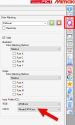
I think your issue may be in RasterLink’s Color Matching settings, under the Quality tab.

By default, the Color Matching preset is often set to Mimaki_Expand_Color. Inside that preset, the CMYK input profile can be MimakiHiContrast. It is actually a good input profile, but it expects the artwork to be prepared for that profile/workflow.

If your files are mostly coming in as U.S. Web Coated SWOP v2, then MimakiHiContrast can make the result look too heavy/dark, especially in blues, shadows and night scenes.

Try this:

1. Go to Quality > Color Matching.
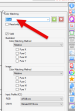
2. Click in the preset name field and type your own name, for example “Work”.
3. Press the green plus button to create a custom Color Matching set.
4. In Input Profile (ICC), change the CMYK profile to something calmer, for example MimakiCMYK.icm.
5. Or, better, add your actual CMYK profile through Profile Manager, such as U.S. Web Coated SWOP v2, and select it there.

After that, run the same file again. You may find that the colors suddenly become much closer to what you expected.

Mimaki_Expand_Color is not bad at all. The problem is just that the input profile has to match how the artwork was prepared.

2026-06-03_19-35-54.PNG
 
  • Informative
Reactions: 1 user

Solventinkjet

DIY Printer Fixing Guide
I think your issue may be in RasterLink’s Color Matching settings, under the Quality tab.

By default, the Color Matching preset is often set to Mimaki_Expand_Color. Inside that preset, the CMYK input profile can be MimakiHiContrast. It is actually a good input profile, but it expects the artwork to be prepared for that profile/workflow.

If your files are mostly coming in as U.S. Web Coated SWOP v2, then MimakiHiContrast can make the result look too heavy/dark, especially in blues, shadows and night scenes.

Try this:

1. Go to Quality > Color Matching.
2. Click in the preset name field and type your own name, for example “Work”.
3. Press the green plus button to create a custom Color Matching set.
4. In Input Profile (ICC), change the CMYK profile to something calmer, for example MimakiCMYK.icm.
5. Or, better, add your actual CMYK profile through Profile Manager, such as U.S. Web Coated SWOP v2, and select it there.

After that, run the same file again. You may find that the colors suddenly become much closer to what you expected.

Mimaki_Expand_Color is not bad at all. The problem is just that the input profile has to match how the artwork was prepared.

View attachment 182396
Good info. Would it be even better to just import the Mimaki_Expand_Color profile into his design software though? That way he can utilize the expanded gamut properly?
 

afro02

New Member
I think your issue may be in RasterLink’s Color Matching settings, under the Quality tab.

By default, the Color Matching preset is often set to Mimaki_Expand_Color. Inside that preset, the CMYK input profile can be MimakiHiContrast. It is actually a good input profile, but it expects the artwork to be prepared for that profile/workflow.

If your files are mostly coming in as U.S. Web Coated SWOP v2, then MimakiHiContrast can make the result look too heavy/dark, especially in blues, shadows and night scenes.

Try this:

1. Go to Quality > Color Matching.
2. Click in the preset name field and type your own name, for example “Work”.
3. Press the green plus button to create a custom Color Matching set.
4. In Input Profile (ICC), change the CMYK profile to something calmer, for example MimakiCMYK.icm.
5. Or, better, add your actual CMYK profile through Profile Manager, such as U.S. Web Coated SWOP v2, and select it there.

After that, run the same file again. You may find that the colors suddenly become much closer to what you expected.

Mimaki_Expand_Color is not bad at all. The problem is just that the input profile has to match how the artwork was prepared.

View attachment 182396
Thnx a lot man. I will try it and let you know how it goes. Regards.
 

dercar

New Member
Yes, absolutely, that can be done.

But then our brave knight afro02 must also change the color management policies in every design application he uses. And to keep the campaign from going sideways, he would probably need to make conversion into Mimaki_Expand_Color mandatory for every file he opens.

That is a very noble and professional workflow. But, like all noble workflows, it demands discipline.

First, every incoming file would need to be opened, checked, converted, and saved again before printing. In other words, we are no longer simply printing signs; we are entering the honorable land of prepress. That is perfectly valid, but not always necessary. If the job is just a poster, sometimes the shortest road is still: receive file, print file.

Second, sooner or later, some mischievous designer will send a file with no embedded profile at all. Then the design software will stand there like Sancho without a donkey, unsure how to interpret the colors. And because Mimaki_Expand_Color is not exactly a standard everyday CMYK space, the result may involve some heroic, but unwanted, color adventures.

But yes, the main point is correct: Mimaki_Expand_Color can absolutely give you extra gamut and better results, provided it is used deliberately and consistently.

---

afro02, be sure to tell me, dude. I'll be interested.
 
  • Agree
Reactions: 1 users

afro02

New Member
Yes, absolutely, that can be done.

But then our brave knight afro02 must also change the color management policies in every design application he uses. And to keep the campaign from going sideways, he would probably need to make conversion into Mimaki_Expand_Color mandatory for every file he opens.

That is a very noble and professional workflow. But, like all noble workflows, it demands discipline.

First, every incoming file would need to be opened, checked, converted, and saved again before printing. In other words, we are no longer simply printing signs; we are entering the honorable land of prepress. That is perfectly valid, but not always necessary. If the job is just a poster, sometimes the shortest road is still: receive file, print file.

Second, sooner or later, some mischievous designer will send a file with no embedded profile at all. Then the design software will stand there like Sancho without a donkey, unsure how to interpret the colors. And because Mimaki_Expand_Color is not exactly a standard everyday CMYK space, the result may involve some heroic, but unwanted, color adventures.

But yes, the main point is correct: Mimaki_Expand_Color can absolutely give you extra gamut and better results, provided it is used deliberately and consistently.

---

afro02, be sure to tell me, dude. I'll be interested.
LOL nice explanation man, I worked earlier in prepress and it's pain in the ass haha. I'll try and update the post.
 

afro02

New Member
I think your issue may be in RasterLink’s Color Matching settings, under the Quality tab.

By default, the Color Matching preset is often set to Mimaki_Expand_Color. Inside that preset, the CMYK input profile can be MimakiHiContrast. It is actually a good input profile, but it expects the artwork to be prepared for that profile/workflow.

If your files are mostly coming in as U.S. Web Coated SWOP v2, then MimakiHiContrast can make the result look too heavy/dark, especially in blues, shadows and night scenes.

Try this:

1. Go to Quality > Color Matching.
2. Click in the preset name field and type your own name, for example “Work”.
3. Press the green plus button to create a custom Color Matching set.
4. In Input Profile (ICC), change the CMYK profile to something calmer, for example MimakiCMYK.icm.
5. Or, better, add your actual CMYK profile through Profile Manager, such as U.S. Web Coated SWOP v2, and select it there.

After that, run the same file again. You may find that the colors suddenly become much closer to what you expected.

Mimaki_Expand_Color is not bad at all. The problem is just that the input profile has to match how the artwork was prepared.

View attachment 182396
This option is greyed out, any idea how to make it enabled so I can tweak them?
 

dercar

New Member
The option is available, but it is not obvious. The UI is a bit sneaky.

You have to start by typing a new name for a new settings preset. Then click the green plus button. After that, all the settings will become unlocked.

You cannot edit the factory/default presets directly.
2026-06-03_20-45-15.PNG
 
Top